
Your WordPress website is under attack — right now. Whether you know it or not, automated bots are probing your login page, scanning for outdated plugins, and testing your defences. Singapore’s thriving digital economy makes local businesses an especially attractive target for cybercriminals, and WordPress — powering over 43% of all websites globally — is the world’s most targeted content management system (CMS).
The good news? Most WordPress hacks are entirely preventable. With the right security practices in place, you can dramatically reduce your risk, protect customer data, maintain your Google rankings, and keep your business running around the clock.
In this comprehensive guide, the experts at iCreationsLAB — Singapore’s trusted web design and digital solutions agency — walk you through 12 proven, actionable steps to fortify your WordPress website against today’s most common threats.
Why WordPress Security Matters for Singapore Businesses
Singapore businesses are not just at risk of financial loss from a security breach. Under the Personal Data Protection Act (PDPA), organisations are legally obligated to protect customer data. A compromised website can lead to regulatory fines, damaged customer trust, and lasting reputational harm.
Consider these sobering statistics:
- WordPress sites are attacked an average of 90,000 times per minute globally.
- 43% of cyberattacks target small businesses — the backbone of Singapore’s economy.
- The average cost of a data breach in the Asia-Pacific region exceeded USD 3 million in 2024.
- Google blacklists around 10,000 websites daily for malware — killing organic traffic instantly.
The stakes are high. But with systematic WordPress hardening — what security professionals call “defence in depth” — your website can become a fortress rather than a liability.
See More: What is WordPress? WordPress tutorial and the most important notes about WordPress
The 12 Essential WordPress Security Steps for Singapore Businesses
Step 1: Keep WordPress Core, Themes, and Plugins Updated
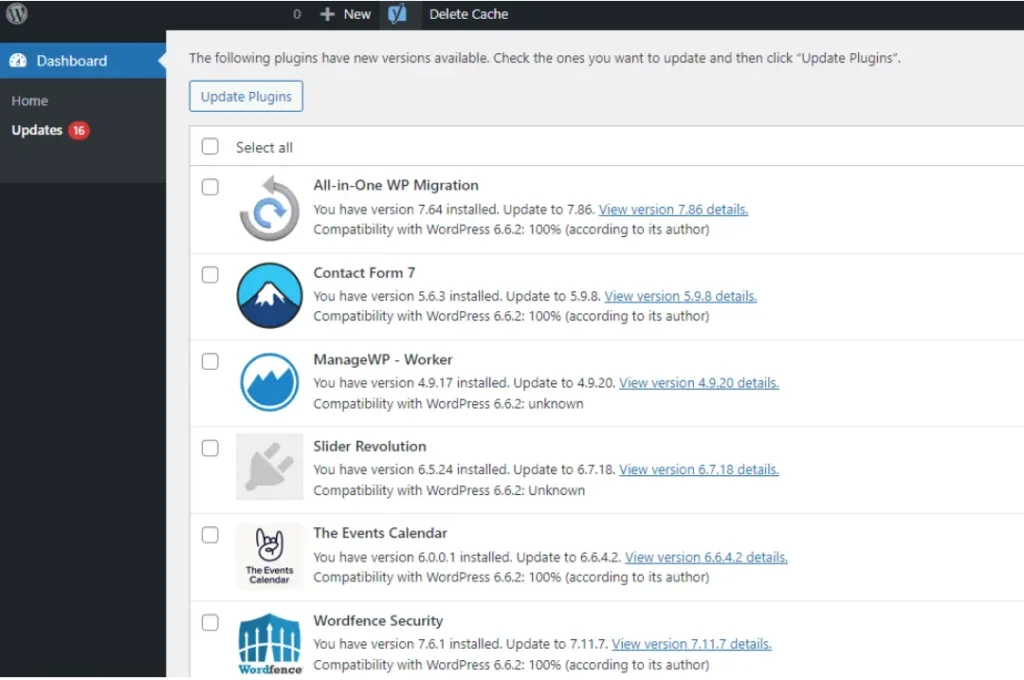
Outdated software is the single biggest cause of WordPress compromises. The WordPress core team regularly releases security patches, and plugin developers push updates to fix newly discovered vulnerabilities. Failing to apply these updates leaves known attack vectors wide open.
What to do:
- Enable automatic updates for minor WordPress core releases.
- Review and update all plugins and themes at least once a week.
- Remove any plugins or themes you no longer actively use — dormant code is still vulnerable code.
- Subscribe to the WPScan Vulnerability Database to receive alerts about newly discovered plugin vulnerabilities.
Pro Tip: Before updating, always take a full website backup. This gives you a restore point if an update causes compatibility issues.
Step 2: Use Strong, Unique Passwords and a Password Manager
Brute-force attacks — where hackers systematically try thousands of password combinations — are among the most common WordPress attacks. Weak passwords like “admin123” or “password” can be cracked in seconds with modern tools.
Best practices:
- Use passwords with at least 16 characters, combining letters, numbers, and symbols.
- Never reuse passwords across different websites or services.
- Use a reputable password manager such as 1Password or Bitwarden to generate and store credentials securely.
- Change default WordPress usernames — never use “admin” as your username.
Step 3: Enable Two-Factor Authentication (2FA)
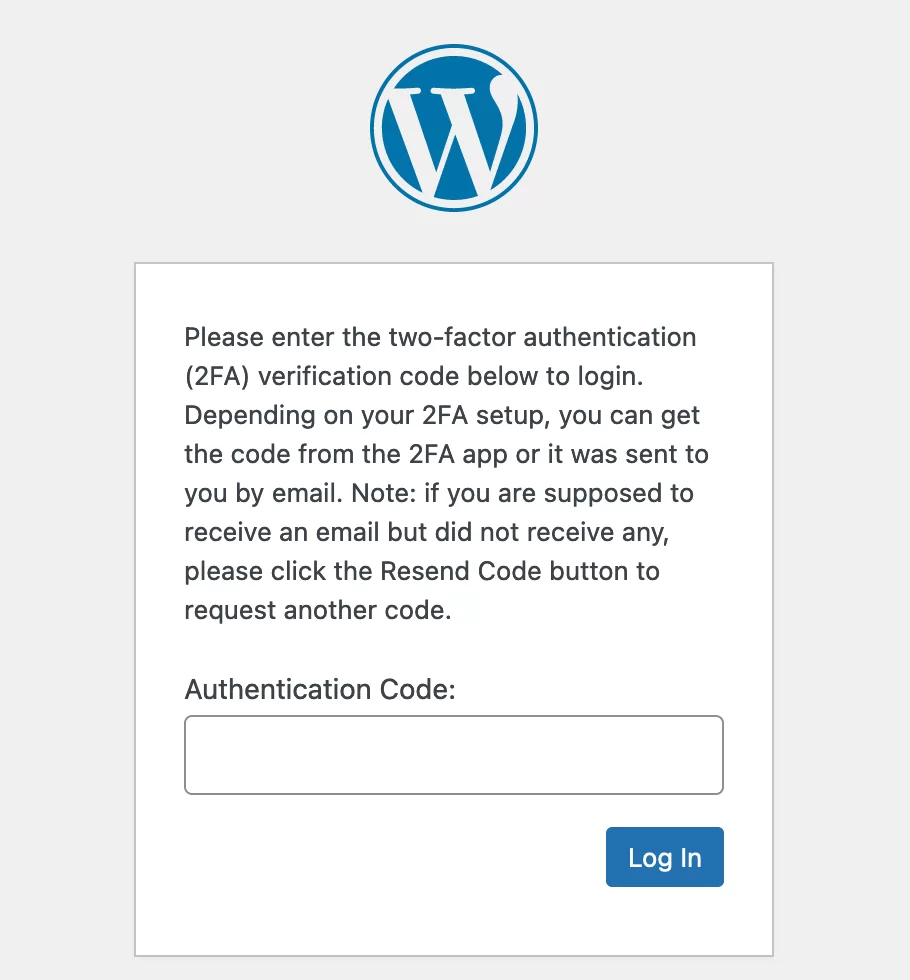
Two-factor authentication adds a critical second verification layer to your WordPress login. Even if a hacker obtains your password, they cannot access your account without the second factor — typically a time-sensitive code generated on your mobile device.
Recommended plugins:
- WP 2FA — easy setup, supports authenticator apps, email, and SMS.
- Google Authenticator — free, widely trusted, and effective.
- Wordfence Login Security — integrates 2FA with broader security features.
Singapore Context: Many Singapore financial institutions and government portals mandate 2FA. Applying the same standard to your business website demonstrates a commitment to security that builds customer trust.
See More: Next.js vs WordPress for Businesses: Which Is Faster & More SEO-Friendly?
Step 4: Install a Reputable WordPress Security Plugin
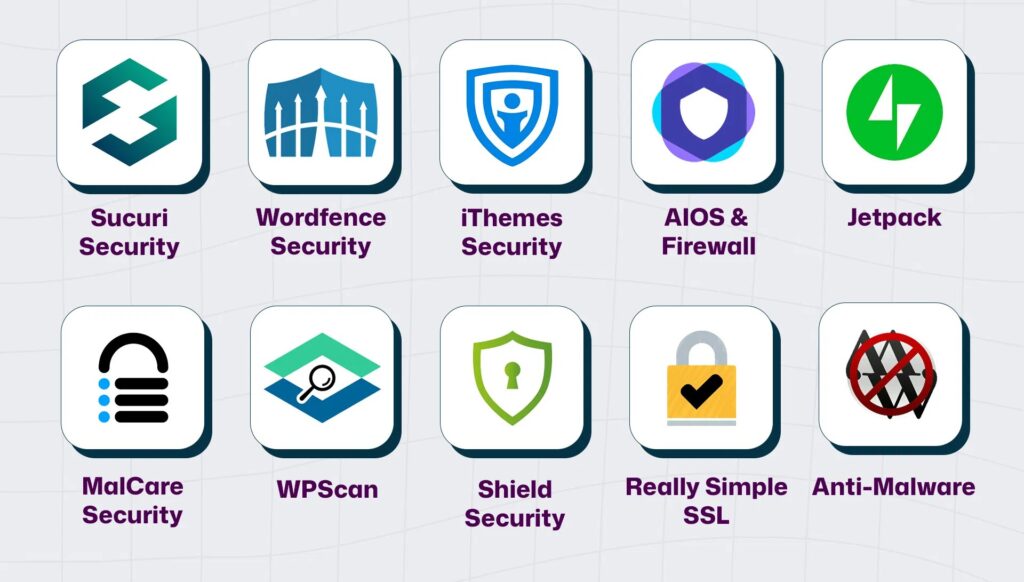
A WordPress security plugin acts as your website’s automated security team — monitoring for intrusions, scanning for malware, and blocking malicious traffic before it reaches your site.
Top security plugins for Singapore businesses:
- Wordfence Security — comprehensive firewall, malware scanner, and live traffic monitoring.
- Sucuri Security — excellent for malware removal, integrity monitoring, and DNS-level firewall.
- iThemes Security Pro — over 30 ways to protect WordPress, including file change detection and database backups.
These plugins are not a silver bullet, but they significantly raise the effort required for a successful attack — making your site a less attractive target compared to unprotected websites.
Step 5: Implement SSL/HTTPS Across Your Entire Website
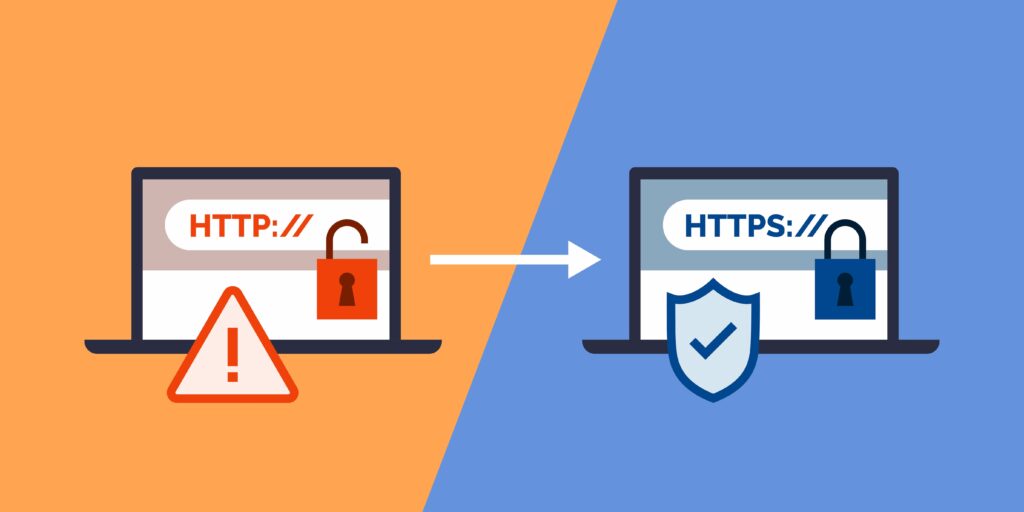
SSL (Secure Sockets Layer) certificates encrypt data transferred between your website and its visitors. In 2025, HTTPS is not optional — it is a Google ranking signal, a trust indicator for users, and a baseline requirement for PDPA compliance when handling personal data.
How to implement SSL:
- Obtain a free SSL certificate through Let’s Encrypt or a paid certificate from your hosting provider.
- Force HTTPS sitewide by adding a redirect in your .htaccess file or through your hosting control panel.
- Update your WordPress Site URL and Home URL settings to use HTTPS.
- Check for mixed content issues using online tools such as WhyNoPadlock.com.
Step 6: Choose Secure, Managed WordPress Hosting
Not all hosting is created equal. Budget shared hosting often places thousands of websites on the same server with minimal isolation — meaning if one site on the server is compromised, yours may be too. This is called “cross-contamination” or “neighbourhood risk.”
For Singapore businesses, we recommend choosing a managed WordPress hosting provider with:
- Servers located in Singapore or the Asia-Pacific region for optimal speed.
- Automatic daily backups with one-click restore.
- Built-in Web Application Firewall (WAF).
- Malware scanning and automatic removal.
- PHP version management and server-level security hardening.
Recommended providers for Singapore: WP Engine, Kinsta, SiteGround (Singapore server), and Cloudways with DigitalOcean Singapore nodes.
Is Your Business Website Truly Secure?
At iCreationsLAB, we build fast, secure, and conversion-focused websites for Singapore businesses. Our expert team offers professional Web Design Singapore services — from WordPress hardening to complete website builds — so you can focus on growing your business, not patching security holes.
See More: How to Use WordPress for Business Websites: The Ultimate Guide
✅ WordPress Security Audit | ✅ Custom Web Design Singapore
👉 Get a FREE Website Security Consultation → www.iCreationsLAB.com Trusted by Singapore businesses since 2008. Let’s build something great together.
Step 7: Limit Login Attempts and Protect the wp-admin Area
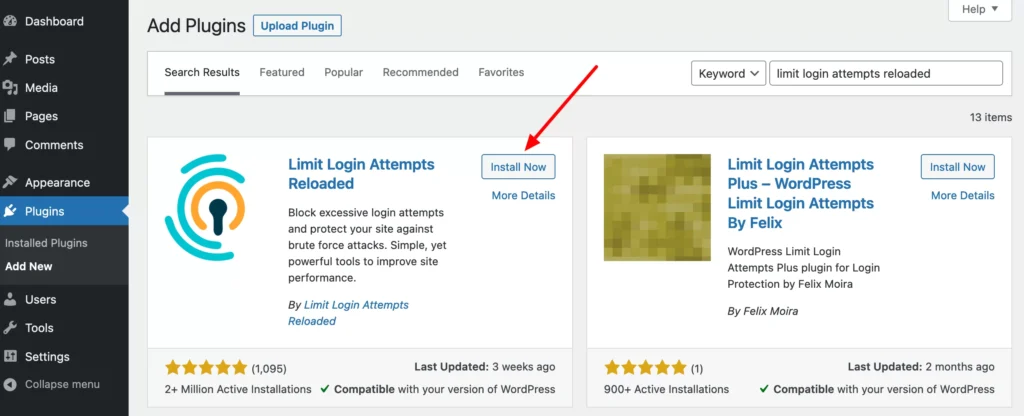
Your WordPress login page (/wp-login.php) is a primary target for brute-force attacks. By limiting the number of failed login attempts, you can lock out attackers before they gain access.
Hardening your wp-admin:
- Install the Limit Login Attempts Reloaded plugin to block IPs after repeated failures.
- Change your WordPress login URL from the default /wp-login.php to a custom path using plugins like WPS Hide Login.
- Restrict wp-admin access by IP address using your hosting control panel or .htaccess file.
- Add HTTP authentication (a second username/password prompt) to the wp-admin directory at the server level.
Step 8: Perform Regular Website Backups
No security strategy is complete without backups. Backups are your ultimate safety net — if the worst happens, a clean, recent backup means the difference between a minor inconvenience and a catastrophic loss.
Backup best practices:
- Back up daily for active eCommerce or membership sites; weekly is sufficient for brochure websites.
- Store backups in a separate location from your hosting server — use cloud storage such as Amazon S3, Google Drive, or Dropbox.
- Use reliable backup plugins: UpdraftPlus, BlogVault, or Jetpack Backup.
- Test your backups regularly by performing a test restore on a staging environment.
PDPA Note: Under Singapore’s PDPA, organisations must protect personal data from unauthorised access, disclosure, or loss. Maintaining secure backups directly supports this obligation.
Step 9: Harden WordPress Configuration and Database Security
Beyond plugins and passwords, there are important technical hardening steps at the configuration level that significantly reduce your attack surface.
Key configuration hardening steps:
- Change the default WordPress database table prefix from “wp_” to a random string (e.g., “xk72m_”) to make SQL injection attacks harder.
- Disable XML-RPC if you don’t use it — it’s a common attack vector for DDoS amplification and brute-force attacks.
- Disable directory browsing by adding “Options -Indexes” to your .htaccess file.
- Move your wp-config.php file above the public_html root directory to prevent direct access.
- Restrict file editing from within the WordPress dashboard by adding “define(‘DISALLOW_FILE_EDIT’, true);” to wp-config.php.
Step 10: Implement a Web Application Firewall (WAF)
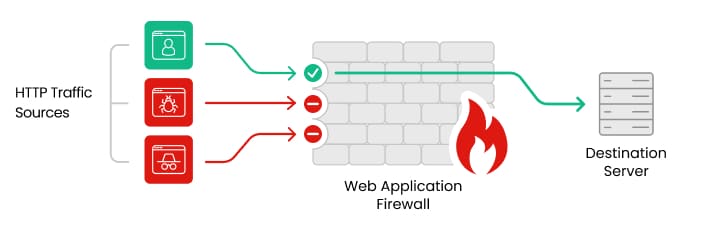
A Web Application Firewall sits between your website and incoming traffic, filtering out malicious requests before they ever reach your server. A WAF can block SQL injections, cross-site scripting (XSS) attacks, and other common exploit attempts.
Two types of WAF to consider:
- Plugin-level WAF: Wordfence and Sucuri include WAF functionality that runs on your server.
- DNS-level WAF: Services like Cloudflare (with its Singapore Points of Presence) filter traffic before it hits your server — faster and more effective, especially against DDoS attacks.
For most Singapore businesses, we recommend using Cloudflare’s free plan as a foundational DNS-level WAF, combined with Wordfence at the application level for layered protection.
Step 11: Monitor Your Website and Set Up Security Alerts
Security is not a one-time task — it requires continuous monitoring. Early detection of suspicious activity allows you to respond before a minor issue becomes a major breach.
What to monitor:
- File integrity monitoring: detect unauthorised changes to your WordPress core files.
- Uptime monitoring: use services like UptimeRobot or Pingdom to receive instant alerts if your site goes offline.
- Login monitoring: track failed login attempts and suspicious login locations.
- Google Search Console: check regularly for security issues flagged by Google, including malware warnings.
Step 12: Conduct Regular Security Audits and Penetration Tests
Even the most carefully hardened website needs periodic professional review. A security audit systematically examines all aspects of your WordPress installation, hosting environment, and user access controls. Penetration testing (“pen testing”) takes this further by simulating real-world attacks to uncover vulnerabilities before malicious actors do.
What a professional security audit includes:
Review of all installed plugins and themes for known vulnerabilities, assessment of user roles and permissions (principle of least privilege), server configuration review, SSL/TLS certificate and HTTPS enforcement check, malware scan across all files and the database, review of backup and recovery procedures, and PDPA compliance assessment for data handling practices.
For Singapore businesses, we recommend commissioning a formal security audit at least once per year — or following any significant website update, plugin changes, or staff transitions.
See More: WordPress Website Design Hacks for a High-Impact Website
WordPress Security Checklist: Quick Reference
Use this table as a practical checklist to track your security implementation:
| Step | Security Action | Priority | Status |
| 1 | Update WordPress core, plugins & themes | Critical | ☐ |
| 2 | Use strong, unique passwords | Critical | ☐ |
| 3 | Enable 2FA on all accounts | Critical | ☐ |
| 4 | Install security plugin (Wordfence/Sucuri) | High | ☐ |
| 5 | Enable SSL/HTTPS sitewide | Critical | ☐ |
| 6 | Upgrade to secure managed hosting | High | ☐ |
| 7 | Limit login attempts & protect wp-admin | High | ☐ |
| 8 | Set up automated daily backups | Critical | ☐ |
| 9 | Harden WordPress & database config | Medium | ☐ |
| 10 | Implement WAF (Cloudflare + Wordfence) | High | ☐ |
| 11 | Set up uptime & security monitoring | Medium | ☐ |
| 12 | Schedule annual professional security audit | High | ☐ |
See More: Top 12 Web Design Companies in Singapore (2026 Guide)
Frequently Asked Questions (FAQ)
How often should I update my WordPress plugins?
You should check for plugin updates at least once a week. Security-critical patches should be applied immediately when released. Consider enabling automatic updates for trusted plugins to reduce the window of vulnerability.
Is free hosting safe for a Singapore business website?
Free hosting is generally not appropriate for business use. It typically lacks essential security features such as malware scanning, firewalls, automatic backups, and SSL certificates. Investing in a quality managed WordPress host is one of the highest-ROI decisions you can make for your website’s security.
What happens if my WordPress site is hacked?
If your site is compromised, act immediately: take the site offline to prevent further damage, restore from a clean backup if available, or use a professional malware removal service. Notify relevant parties if customer data may have been exposed — this may be required under Singapore’s PDPA. Conduct a post-incident review to identify how the breach occurred and prevent recurrence.
Do I need a WordPress security plugin if I use managed hosting?
Yes. Managed hosting provides server-level protection, but an application-level security plugin adds an important additional layer. It monitors your WordPress application specifically — scanning files, blocking malicious login attempts, and alerting you to application-level threats that server-level tools may miss.
How does PDPA affect WordPress website security in Singapore?
Singapore’s Personal Data Protection Act requires organisations to protect personal data against unauthorised access, disclosure, modification, or loss. If your website collects names, email addresses, payment information, or any other personal data, you are legally obligated to implement reasonable security measures. Failing to do so can result in financial penalties and regulatory action by the Personal Data Protection Commission (PDPC).
Conclusion: Security Is the Foundation of a Successful Website
WordPress security in Singapore is not a technical nicety — it’s a business imperative. In a digital environment where threats evolve daily and customer trust is hard-won but easily lost, investing in robust website security protects your revenue, your reputation, and your legal compliance.
The 12 steps outlined in this guide form a comprehensive defence-in-depth strategy. Start with the critical items — updates, strong passwords, 2FA, and SSL — then work through the remaining steps systematically. Security is not a destination; it’s an ongoing commitment.
If you’d prefer expert help, iCreationsLAB offers professional WordPress security audits, managed maintenance packages, and complete Web Design Singapore services — building websites that are not just beautiful, but genuinely secure from the ground up.